> ## Documentation Index
> Fetch the complete documentation index at: https://forest-chore-open-api.mintlify.site/llms.txt
> Use this file to discover all available pages before exploring further.
# Inbox
> Automatically distribute tasks across your team with Inboxes.
The **Inbox** feature automatically assigns tasks to team members based on workload and dispatch rules, improving efficiency and ensuring no record falls through the cracks.
An inbox is either tied to:
* A **Segment**, for example the `Waiting for Validation` segment of a `Documents` collection. Every record in that segment becomes a task for operators to process.
* A **Workflow**, as an escalation mechanism for a user to pick up a process where a previous user left off.
## Creating an inbox
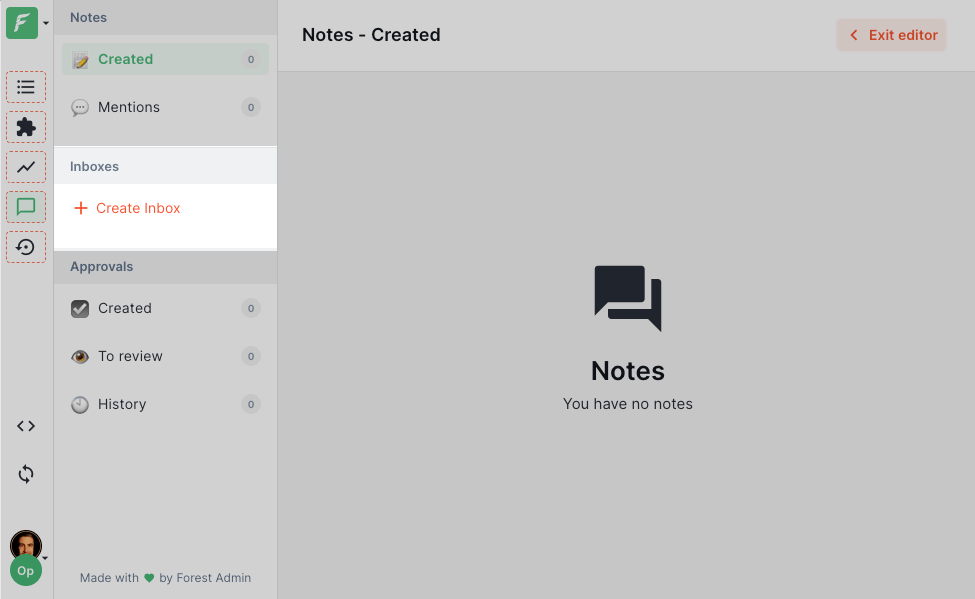
To create an inbox, navigate to the **Collaboration** tab and enable **Layout Editor** mode. In the left navbar, find the **Inboxes** section and click **Add New**.
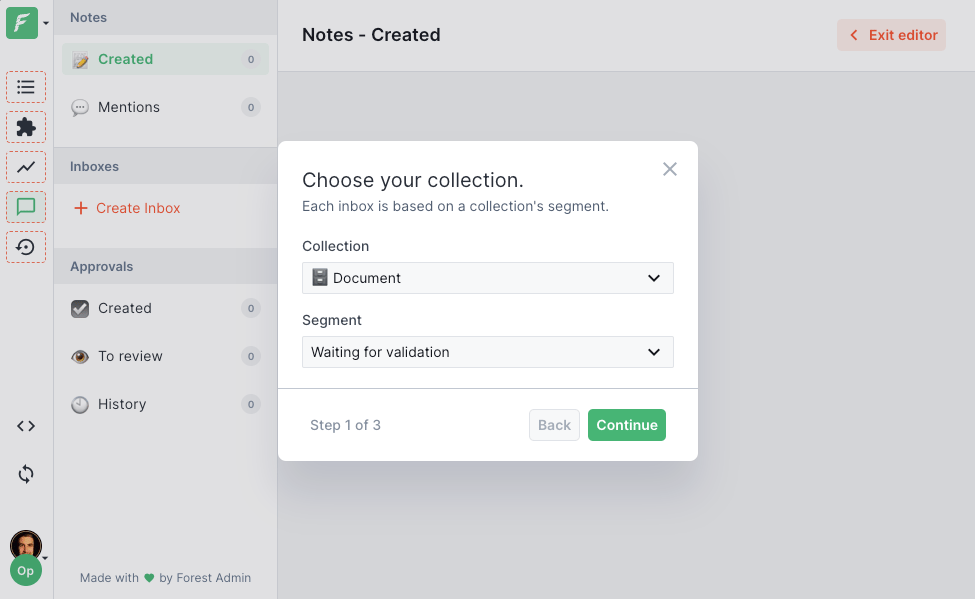
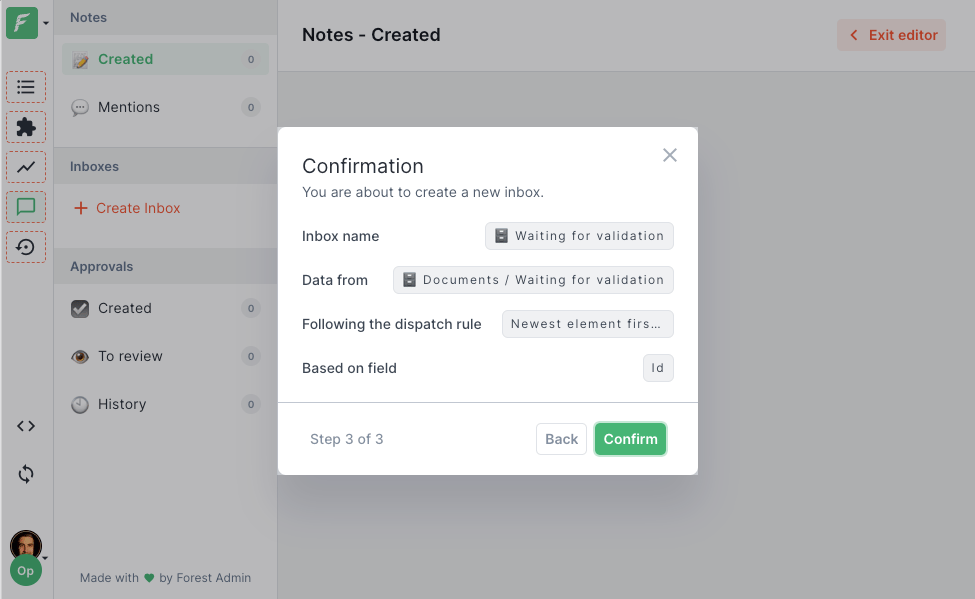
 An inbox is always based on a segment of a collection. In this example, the inbox is based on the `Documents` collection and the `Waiting for Validation` segment, all documents that have not been verified yet.
## Processing tasks
Once an inbox is created, operators can access it from the main tab, or any Workspace on which the inbox has been configured as a source.
Click **Start processing** to be automatically assigned to the next task and redirected to the record.
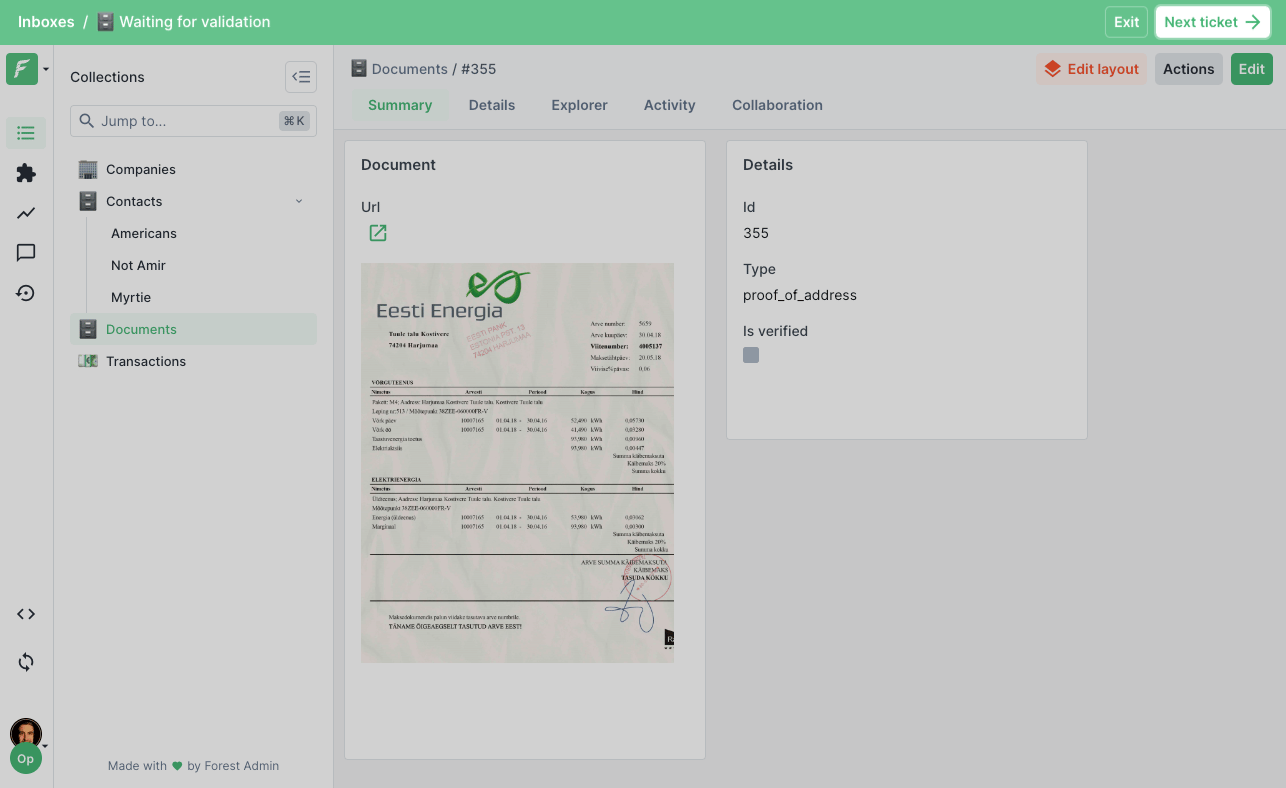
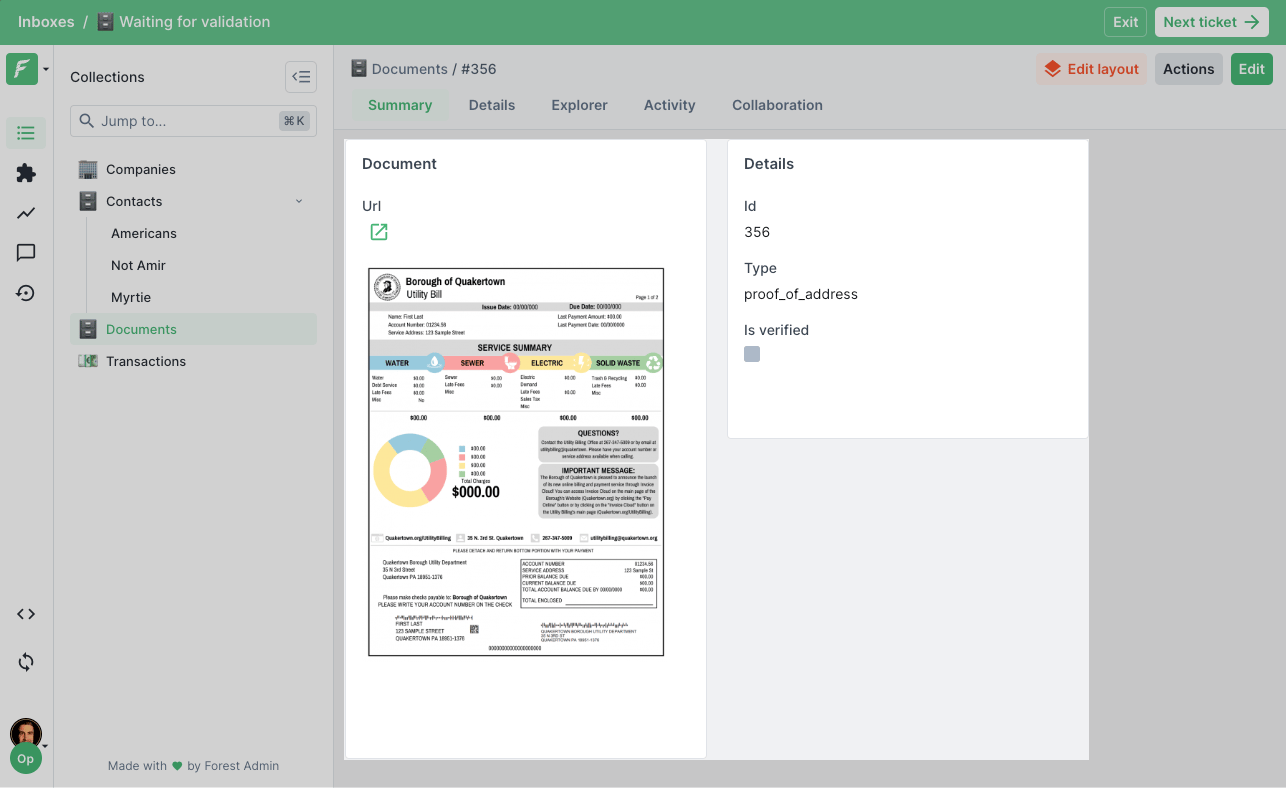 A bar appears at the top indicating you are processing a task. Click **Next ticket** to be automatically assigned a new task.
 ### To do
The **To do** section shows the number of unassigned records, and provides the **Start Processing** button to be automatically assigned to the next task and redirected to the record.
After completing the work on that record (e.g. triggering a `Validate Document` action), click **Next ticket** in the top bar to be assigned a new task automatically.
### Doing
The **Doing** section shows tasks currently assigned to you. Navigate back to an in-progress record from here.
### Backlog
The **Backlog** is visible to operators with a **Manager, Editor, Developer, or Administrator** permission level. It provides an overview of all records in the inbox:
* Which tasks are unassigned, in progress, or completed.
* Which operator is assigned to each task.
* For in-progress tasks: when the task was started.
* For completed tasks: the total handling time (including approval time if applicable).
## Manual task assignment
Managers can manually assign a specific record to an operator from:
* The **Backlog** section of the inbox.
* The **record detail view**, using the native **"Assign to..."** action, which also lets you assign records to operators outside your current team.
Manual assignments bypass the sorting rules and become the next task for that operator.
## Inbox settings
Access inbox settings from **Layout Editor mode** → the menu next to the inbox name. From there:
* **Rename** the inbox or update its icon.
* Edit its **dispatch rules**.
* **Prevent operators from un-assigning themselves** from tasks.
By default, operators can un-assign themselves from a task, and assign someone else in their place.
* **Automatically un-assign tasks** after a configurable idle time, making them available to other operators.
* **Set a maximum number of concurrent tasks per operator**, when reached, clicking "Next ticket" redirects the operator to one of their in-progress tasks instead of assigning a new one.
Maximum concurrent tasks and automatic unassignment are disabled by default.
### To do
The **To do** section shows the number of unassigned records, and provides the **Start Processing** button to be automatically assigned to the next task and redirected to the record.
After completing the work on that record (e.g. triggering a `Validate Document` action), click **Next ticket** in the top bar to be assigned a new task automatically.
### Doing
The **Doing** section shows tasks currently assigned to you. Navigate back to an in-progress record from here.
### Backlog
The **Backlog** is visible to operators with a **Manager, Editor, Developer, or Administrator** permission level. It provides an overview of all records in the inbox:
* Which tasks are unassigned, in progress, or completed.
* Which operator is assigned to each task.
* For in-progress tasks: when the task was started.
* For completed tasks: the total handling time (including approval time if applicable).
## Manual task assignment
Managers can manually assign a specific record to an operator from:
* The **Backlog** section of the inbox.
* The **record detail view**, using the native **"Assign to..."** action, which also lets you assign records to operators outside your current team.
Manual assignments bypass the sorting rules and become the next task for that operator.
## Inbox settings
Access inbox settings from **Layout Editor mode** → the menu next to the inbox name. From there:
* **Rename** the inbox or update its icon.
* Edit its **dispatch rules**.
* **Prevent operators from un-assigning themselves** from tasks.
By default, operators can un-assign themselves from a task, and assign someone else in their place.
* **Automatically un-assign tasks** after a configurable idle time, making them available to other operators.
* **Set a maximum number of concurrent tasks per operator**, when reached, clicking "Next ticket" redirects the operator to one of their in-progress tasks instead of assigning a new one.
Maximum concurrent tasks and automatic unassignment are disabled by default.