> ## Documentation Index
> Fetch the complete documentation index at: https://forest-chore-open-api.mintlify.site/llms.txt
> Use this file to discover all available pages before exploring further.
# Layout editor
> Customize the appearance and structure of your collections without writing code.
The Layout Editor is Forest's visual customization tool. It lets you control exactly what your operators see and how data is presented, which columns appear in tables, how detail views are organized, and how create/edit forms are structured.
Each environment and team has its own layout. Changes you make in development don't affect production until you deploy them.
## Accessing the layout editor
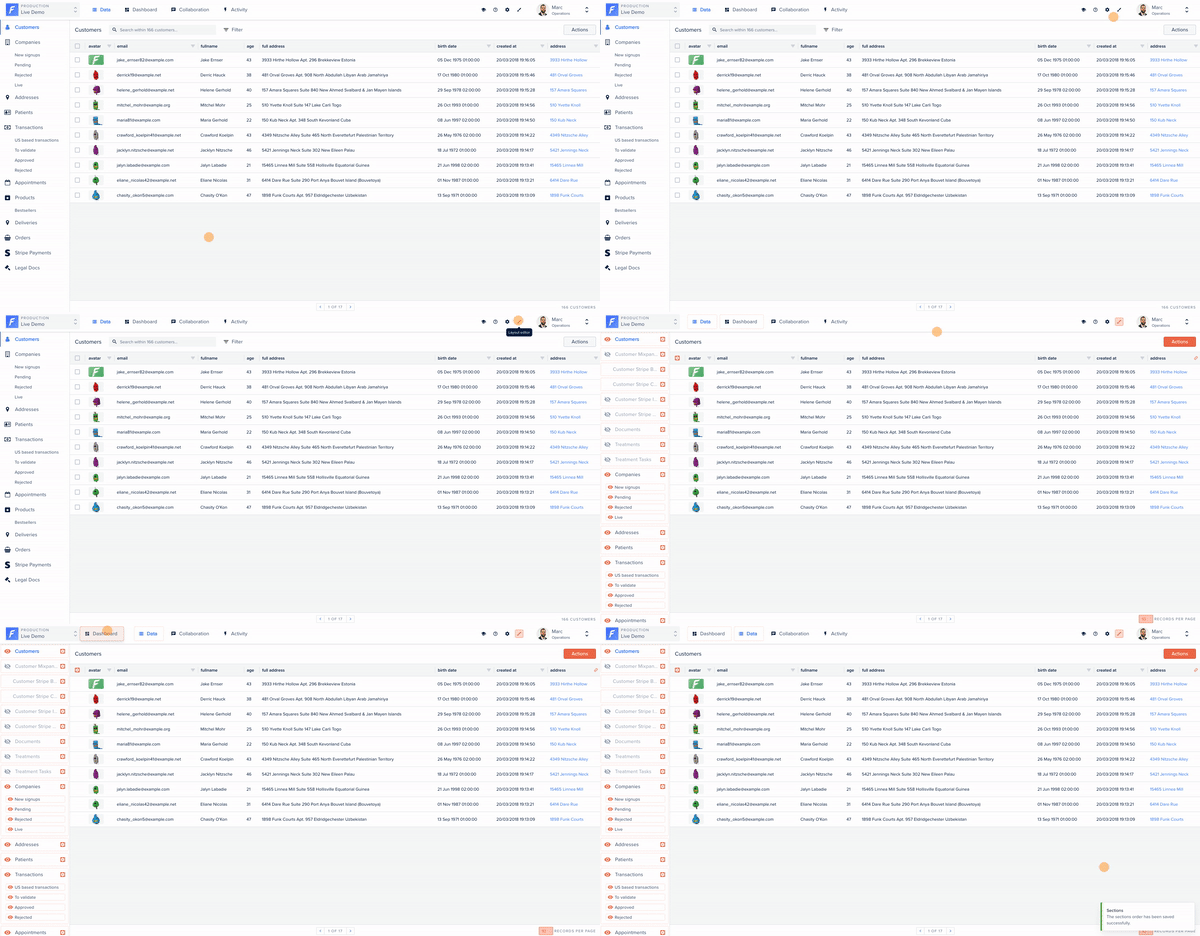
To enter Layout Editor mode, click the **Layout Editor** toggle in the top navigation bar of your back-office. A purple banner appears when the mode is active, any changes you make are saved automatically as a draft.
## Showing and ordering collections
With Layout Editor mode on, you control which collections appear in the navigation and in what order:
* **Show/hide collections**, click the eye icon next to a collection to toggle it. Hide the collections that aren't relevant to your operational team.
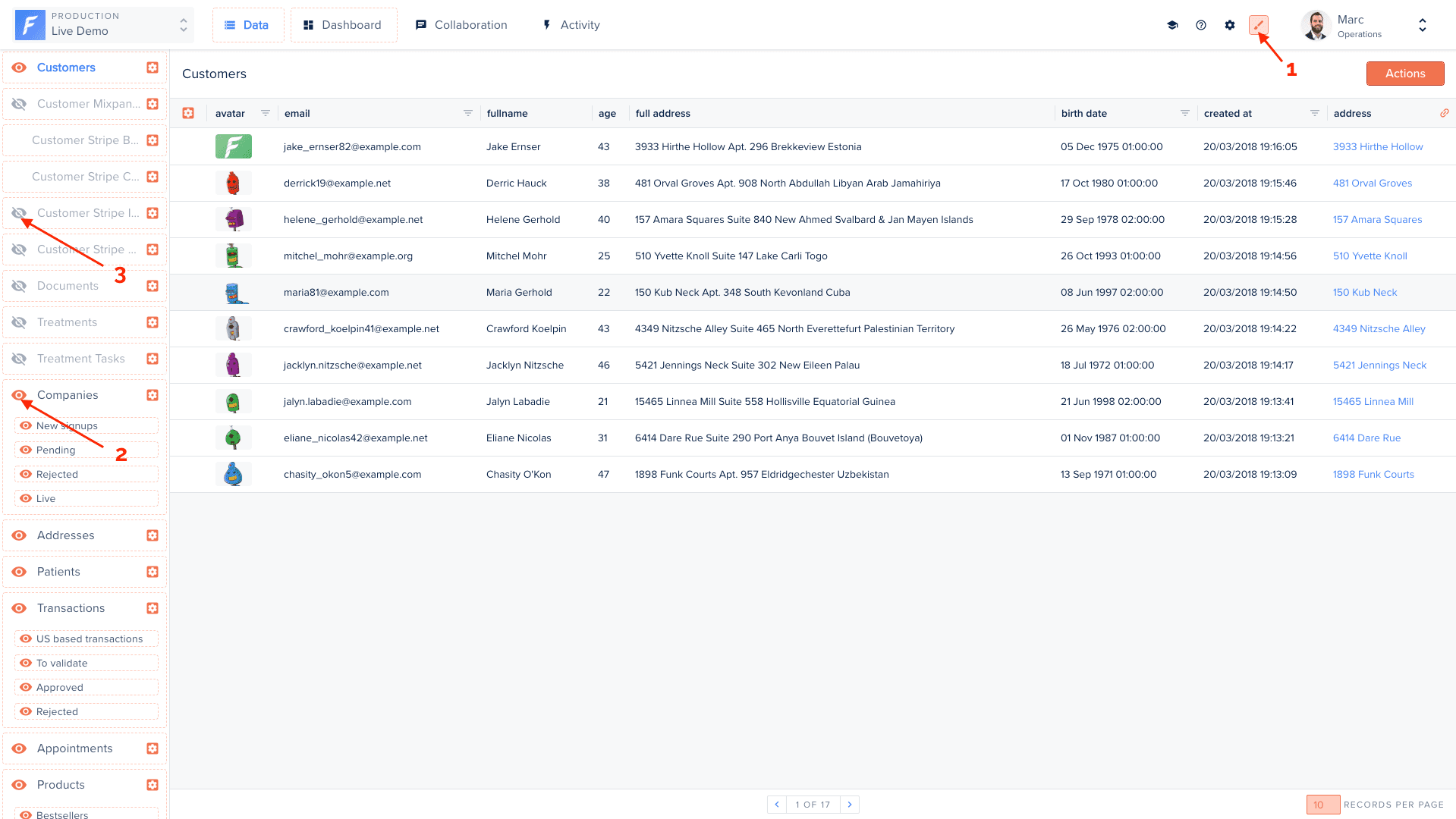 * **Reorder collections**, editable elements are surrounded by dotted lines; drag and drop them to change the order.
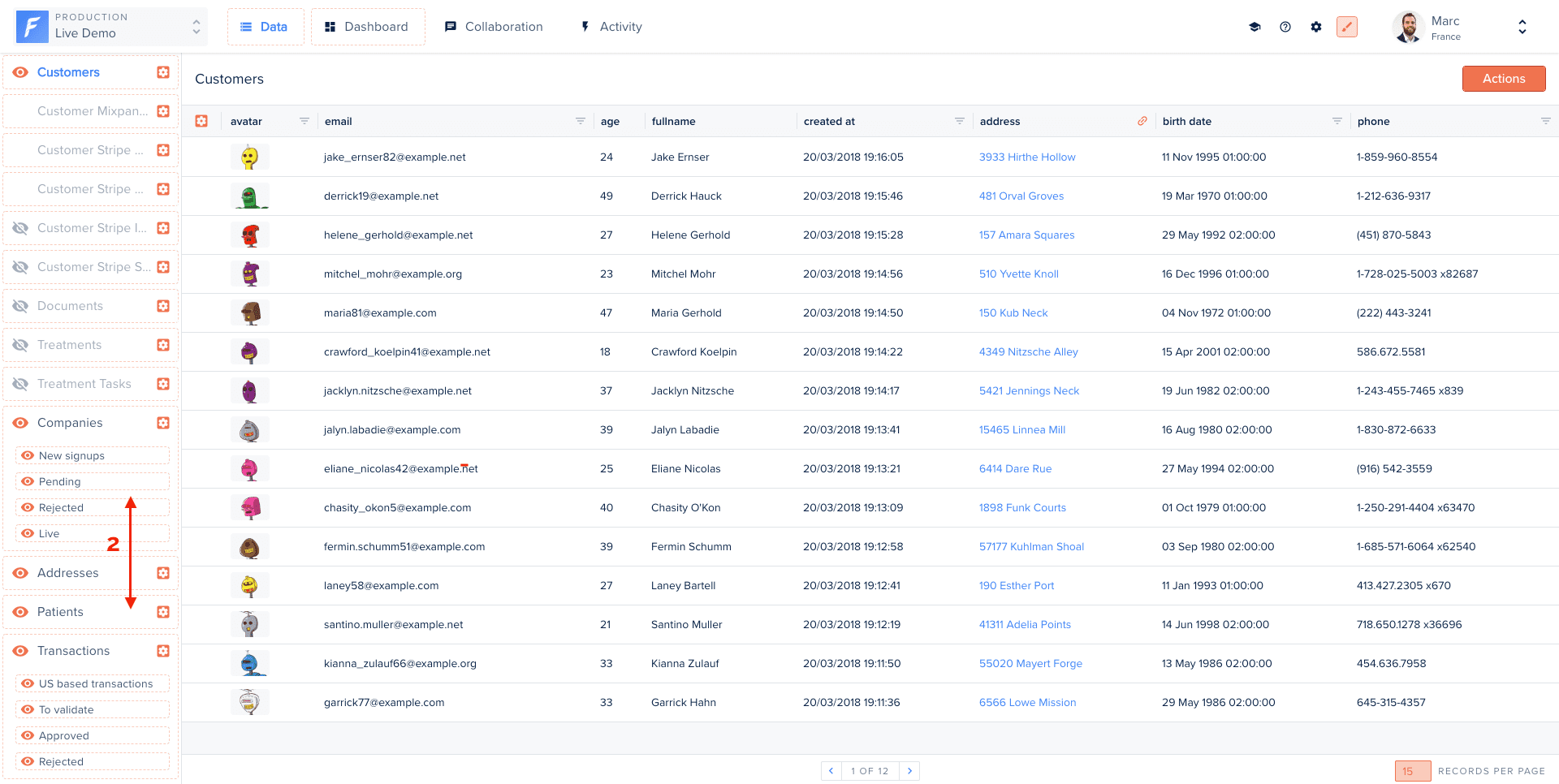 * **Reorder tabs / change the default tab**, by default Forest opens on the Dashboard tab. Drag the tabs (for example move the "Data" tab) to change their order and the default landing tab.
 ## Customizing the table view
The table view is what operators see when browsing a collection. In Layout Editor mode:
* **Show/hide columns**, click the eye icon next to any field to toggle its visibility
* **Reorder columns**, drag and drop column headers to rearrange them
* **Resize columns**, drag column borders to adjust width
* **Set default sort**, click a column header to define the default sort order and direction
Changes apply immediately in preview. Other team members continue seeing the previous layout until you publish.
## Customizing the detail view
The detail view shows when an operator opens a single record. Reorganize fields to match your team's workflow:
* **Drag fields** to reorder them on the page
* **Create sections** to group related fields under a heading
* **Add tabs** to separate different areas of information (e.g. "Profile", "Billing", "Activity")
* **Hide fields** that operators don't need to see on this view
* **Configure related data panels**, choose which relationships appear and how they're displayed
### Sections and tabs
Sections help organize long detail views. To add a section:
1. Click **Add section** in the Layout Editor sidebar
2. Give it a label
3. Drag fields into the section
Tabs are useful when a record has many distinct categories of information. Each tab becomes a separate panel in the detail view.
## Summary view
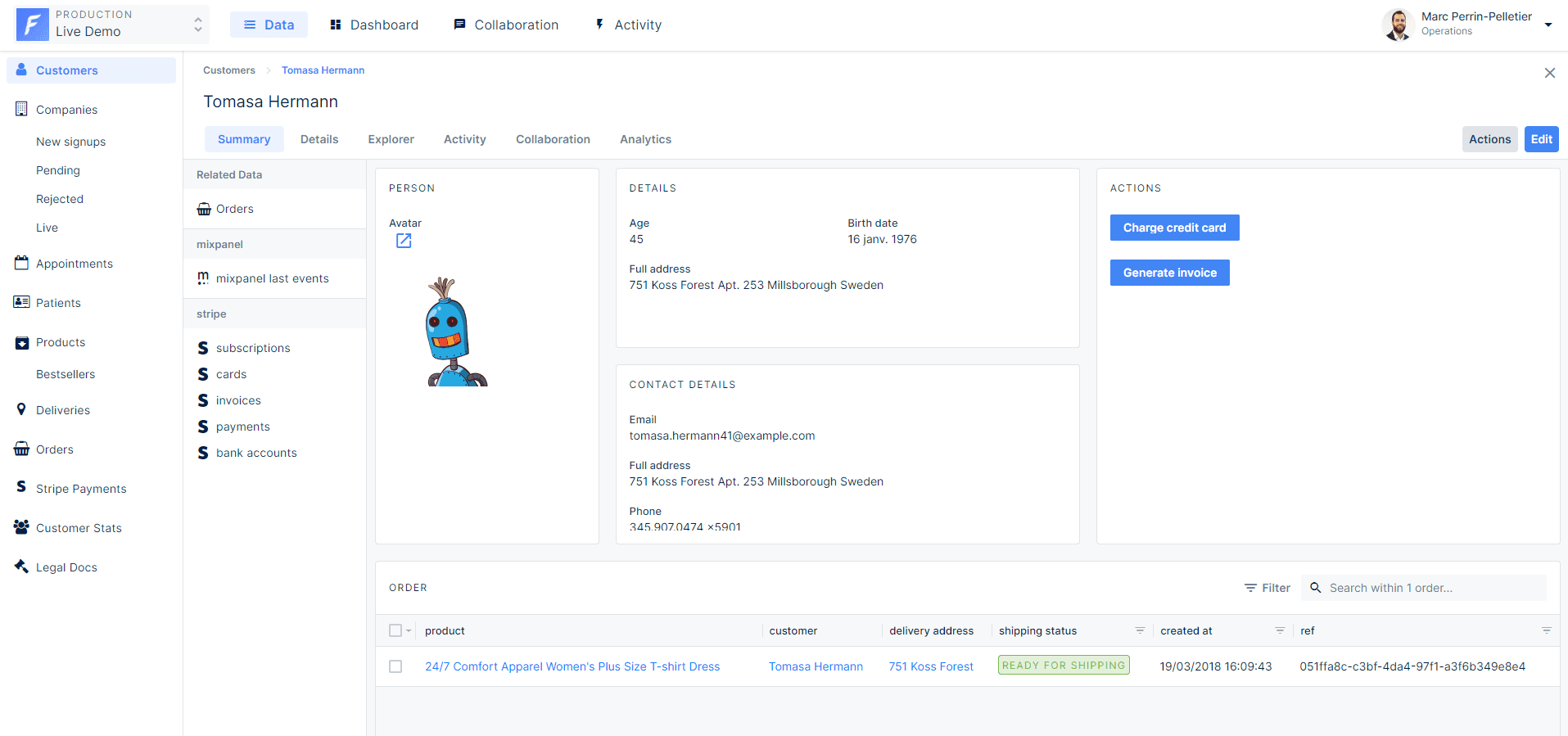
The Summary view is a curated, presentation-oriented view of a single record. Once configured for a collection, it becomes the default entry point when an operator opens one of its records.
To create one, open a record, go to the **Summary** tab and click **Add one** (if a Summary view already exists, reconfigure it from Layout Editor mode).
## Customizing the table view
The table view is what operators see when browsing a collection. In Layout Editor mode:
* **Show/hide columns**, click the eye icon next to any field to toggle its visibility
* **Reorder columns**, drag and drop column headers to rearrange them
* **Resize columns**, drag column borders to adjust width
* **Set default sort**, click a column header to define the default sort order and direction
Changes apply immediately in preview. Other team members continue seeing the previous layout until you publish.
## Customizing the detail view
The detail view shows when an operator opens a single record. Reorganize fields to match your team's workflow:
* **Drag fields** to reorder them on the page
* **Create sections** to group related fields under a heading
* **Add tabs** to separate different areas of information (e.g. "Profile", "Billing", "Activity")
* **Hide fields** that operators don't need to see on this view
* **Configure related data panels**, choose which relationships appear and how they're displayed
### Sections and tabs
Sections help organize long detail views. To add a section:
1. Click **Add section** in the Layout Editor sidebar
2. Give it a label
3. Drag fields into the section
Tabs are useful when a record has many distinct categories of information. Each tab becomes a separate panel in the detail view.
## Summary view
The Summary view is a curated, presentation-oriented view of a single record. Once configured for a collection, it becomes the default entry point when an operator opens one of its records.
To create one, open a record, go to the **Summary** tab and click **Add one** (if a Summary view already exists, reconfigure it from Layout Editor mode).
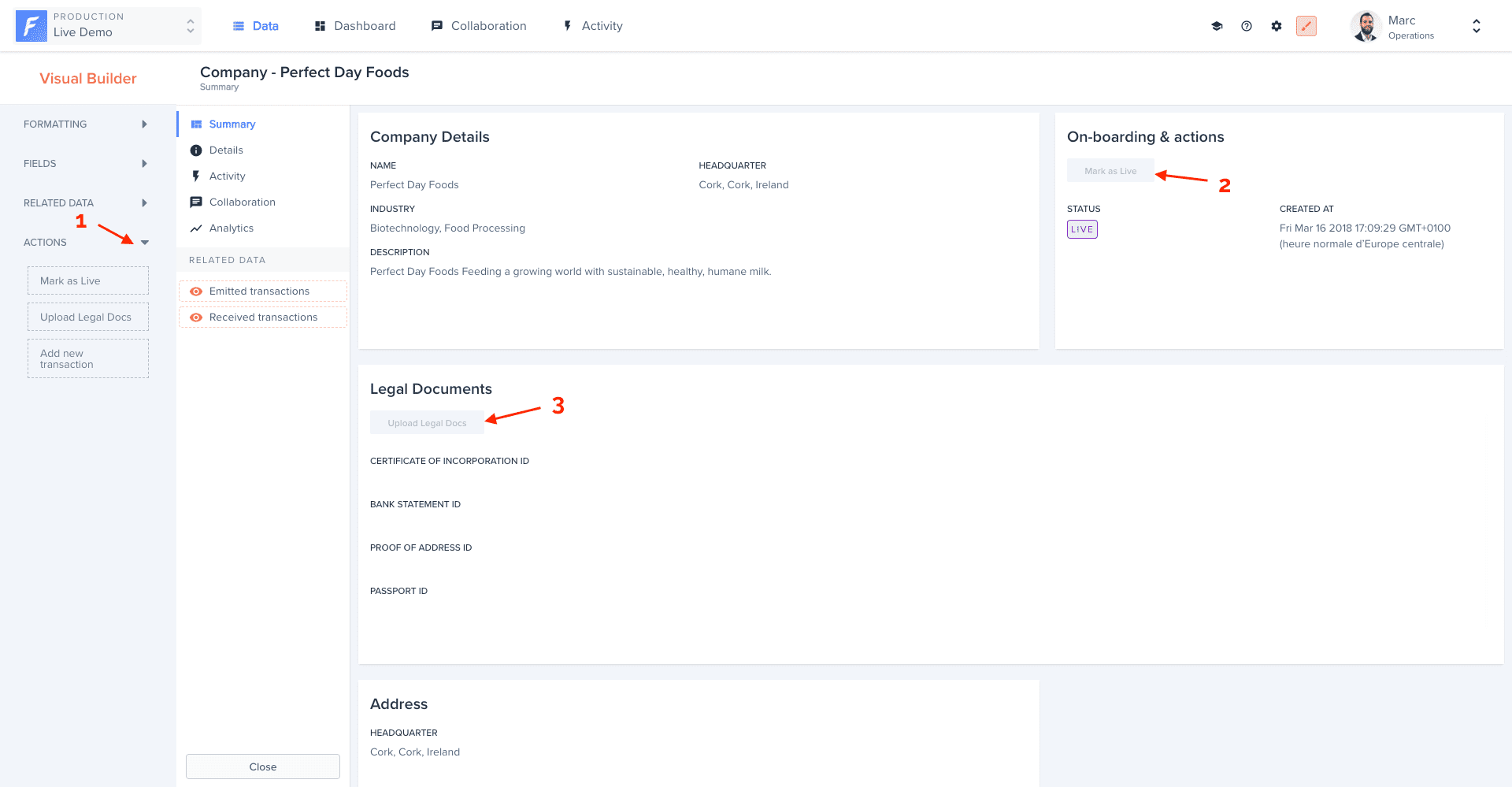
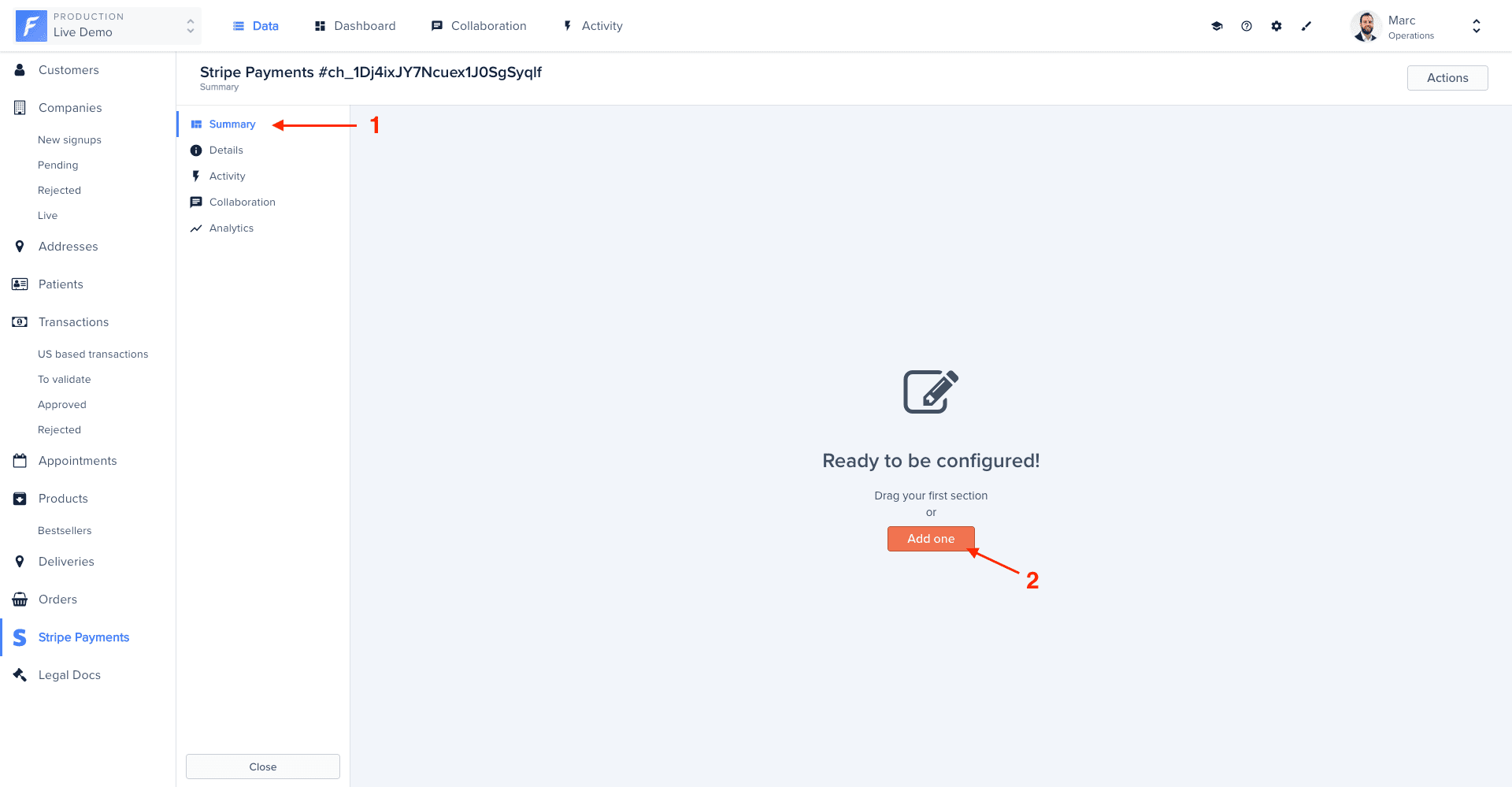 You then build it with a drag-and-drop **visual builder** organized into four categories:
* **Formatting**, add a **Section** and drop fields into it to structure the layout.
* **Fields**, the record's own fields.
* **Related data**, the record's relationships (for example a customer's `Orders`); drag them in like any other module.
* **Actions**, insert any of the collection's [actions](/product/process/actions/overview) directly into a section, so operators can act on the record straight from the Summary.
You then build it with a drag-and-drop **visual builder** organized into four categories:
* **Formatting**, add a **Section** and drop fields into it to structure the layout.
* **Fields**, the record's own fields.
* **Related data**, the record's relationships (for example a customer's `Orders`); drag them in like any other module.
* **Actions**, insert any of the collection's [actions](/product/process/actions/overview) directly into a section, so operators can act on the record straight from the Summary.
 To remove a section or module, drag it from its upper-right corner to the trash icon.
 ## Explorer view
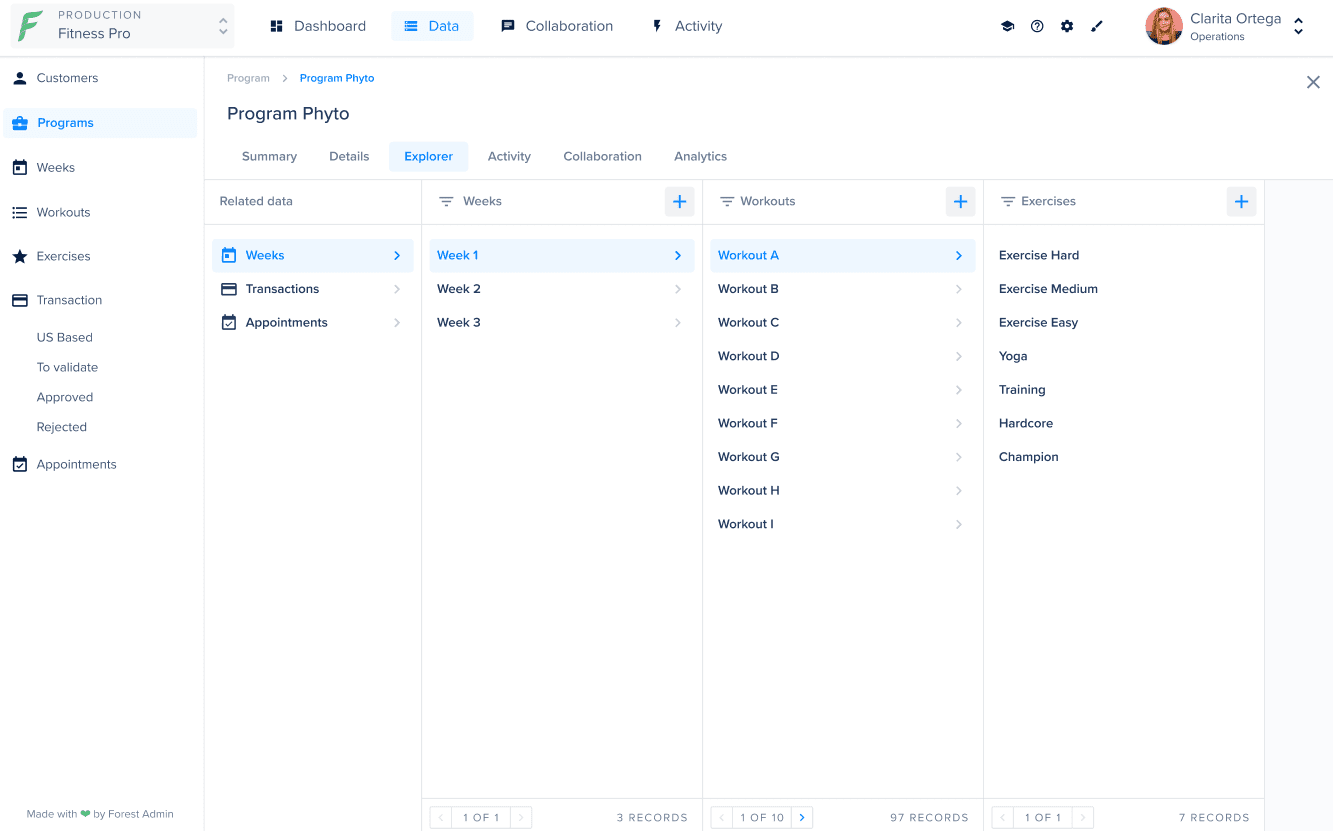
The **Explorer** tab lets operators browse linked collections, even across relationships that are several levels deep, and edit, add, or associate records from there.
## Explorer view
The **Explorer** tab lets operators browse linked collections, even across relationships that are several levels deep, and edit, add, or associate records from there.
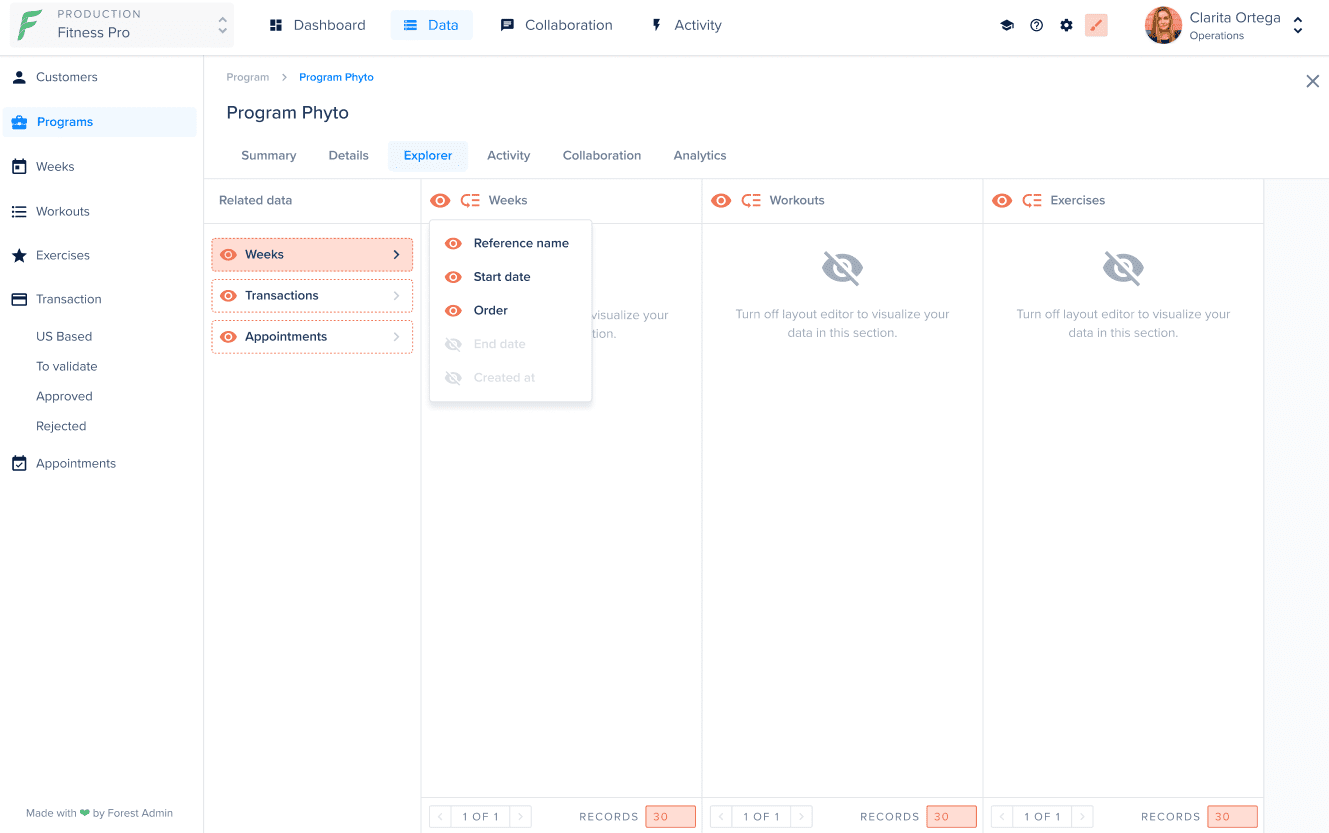
 To configure it, turn on Layout Editor mode while on the **Explorer** tab. You choose which related collections to display and up to **3** fields to show for each record.
 ## Customizing forms
Create and edit forms are configured separately from the detail view, giving you full control over the data entry experience.
In the Layout Editor, switch to **"New record"** or **"Edit record"** view using the selector at the top, then:
* **Reorder fields** to match the natural flow of data entry
* **Group fields** into logical sections (e.g. "Contact info", "Address")
* **Set field visibility**, hide fields that should never appear in forms
* **Mark fields as read-only** in edit mode when they shouldn't be changed after creation
Hiding a required field from a form will prevent operators from creating records. Make sure required fields remain visible.
## Customizing forms
Create and edit forms are configured separately from the detail view, giving you full control over the data entry experience.
In the Layout Editor, switch to **"New record"** or **"Edit record"** view using the selector at the top, then:
* **Reorder fields** to match the natural flow of data entry
* **Group fields** into logical sections (e.g. "Contact info", "Address")
* **Set field visibility**, hide fields that should never appear in forms
* **Mark fields as read-only** in edit mode when they shouldn't be changed after creation
Hiding a required field from a form will prevent operators from creating records. Make sure required fields remain visible.