> ## Documentation Index
> Fetch the complete documentation index at: https://forest-chore-open-api.mintlify.site/llms.txt
> Use this file to discover all available pages before exploring further.
# Smart Fields
### What is a Smart Field?
A field that displays a computed value in your collection.
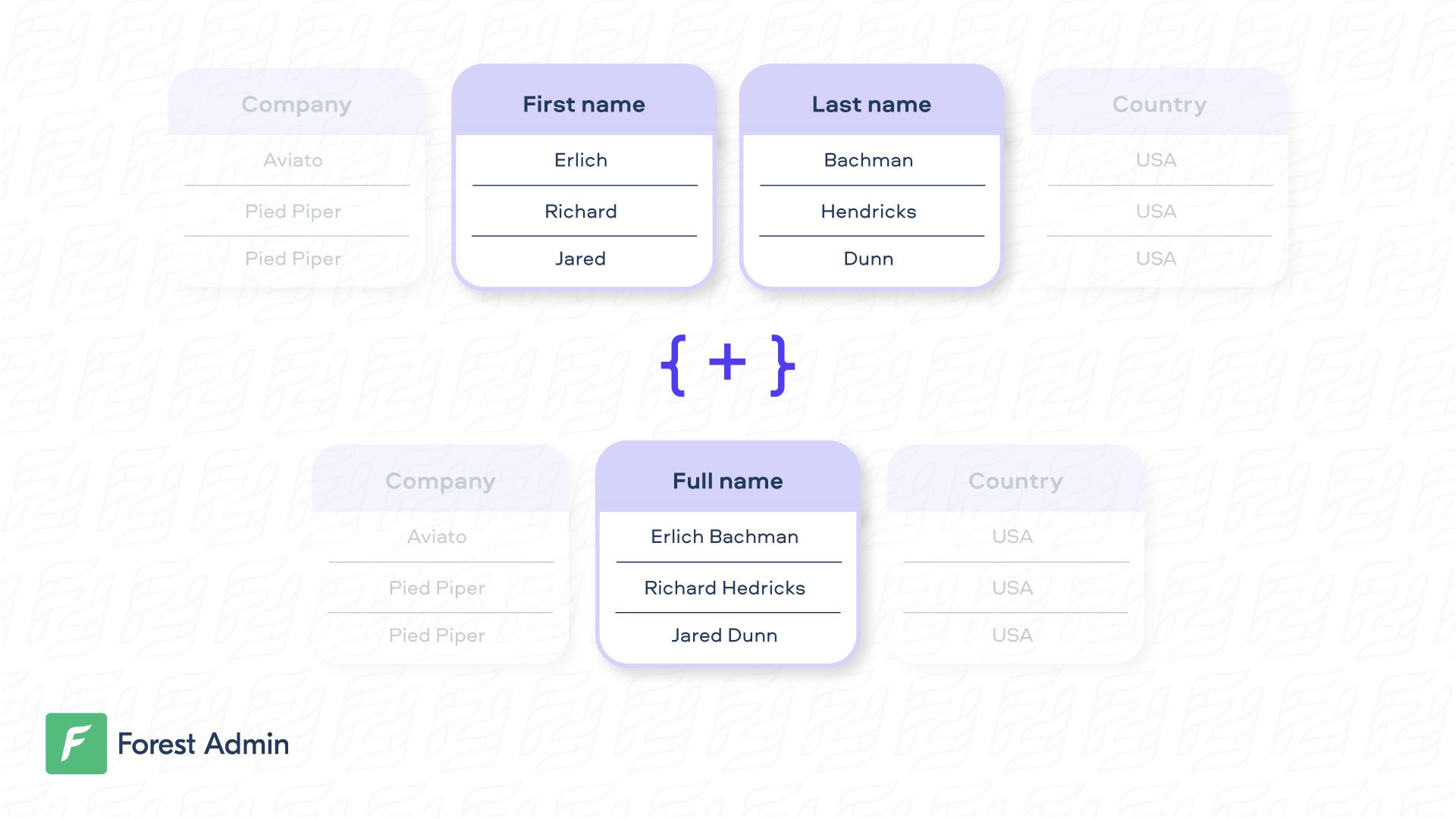 A Smart Field is a column that displays processed-on-the-fly data. It can be as simple as concatenating attributes to make them human friendly, or more complex (e.g. total of orders).
### Creating a Smart Field
On our Live Demo, the very simple Smart Field `fullname` is available on the `customers` collection.
```javascript theme={null}
const { collection } = require('forest-express-sequelize');
collection('customers', {
fields: [
{
field: 'fullname',
type: 'String',
get: (customer) => {
return customer.firstname + ' ' + customer.lastname;
},
},
],
});
```
\
Very often, the business logic behind the Smart Field is more complex and must be asynchronous. To do that, please have a look at [this section](/legacy/javascript-agents/reference-guide/smart-fields/overview#createadvancedsmartfield).
On our Live Demo, the very simple Smart Field `fullname` is available on the `customers` collection.
```javascript theme={null}
const { collection } = require('forest-express-mongoose');
collection('customers', {
fields: [
{
field: 'fullname',
type: 'String',
get: (customer) => {
return customer.firstname + ' ' + customer.lastname;
},
},
],
});
```
\
Very often, the business logic behind the Smart Field is more complex and must be asynchronous. To do that, please have a look at [this section](/legacy/javascript-agents/reference-guide/smart-fields/overview#createadvancedsmartfield).
On our Live Demo, the very simple Smart Field `fullname` is available on the `Customer` collection.
```ruby theme={null}
class Forest::Customer
include ForestLiana::Collection
collection :Customer
field :fullname, type: 'String' do
"#{object.firstname} #{object.lastname}"
end
end
```
Very often, the business logic behind the Smart Field is more complex and must interact with the database. Here’s an example with the Smart Field `full_address` on the `Customer` collection.
```ruby theme={null}
class Forest::Customer
include ForestLiana::Collection
collection :Customer
field :full_address, type: 'String' do
address = Address.find_by(customer_id: object.id)
"#{address[:address_line_1]} #{address[:address_line_2]} #{address[:address_city]} #{address[:country]}"
end
end
```
On our Live Demo, the very simple Smart Field `fullname` is available on the `Customer` collection.
Ensure the file app/forest/\_\_init\_\_.py exists and contains the import of the previous defined class :
On our Live Demo, the very simple Smart Field `fullname` is available on the `Customer` model.
Very often, the business logic behind the Smart Field is more complex and must interact with the database. Here’s an example with the Smart Field `full_address` on the `Customer` model.
The collection name must be the same as the **model name**.
### Updating a Smart Field
By default, your Smart Field is considered as read-only. If you want to update a Smart Field, you just need to write the logic to “unzip” the data. **Note that the `set` method should always return the object it’s working on**. In the example hereunder, the `customer` object is returned including only the modified data.
```javascript theme={null}
const { collection } = require('forest-express-sequelize');
collection('customers', {
fields: [
{
field: 'fullname',
type: 'String',
get: (customer) => {
return customer.firstname + ' ' + customer.lastname;
},
set: (customer, fullname) => {
let names = fullname.split(' ');
customer.firstname = names[0];
customer.lastname = names[1];
// Don't forget to return the customer.
return customer;
},
},
],
});
```
Working with the actual record can be done this way:
```javascript theme={null}
const { collection, ResourceGetter } = require('forest-express-sequelize');
const { customers } = require('../models');
collection('customers', {
fields: [
{
field: 'fullname',
type: 'String',
get: (customer) => {
return customer.firstname + ' ' + customer.lastname;
},
set: async (customer, fullname) => {
const customerBeforeUpdate = await customers.findOne({
where: { id: customer.id },
});
const names = fullname.split(' ');
customer.firstname = `${names[0]} ${customerBeforeUpdate.pseudo}`;
return customer;
},
},
],
});
```
For security reasons, the `fullname` Smart field will remain **read-only**, even after you implement the `set` method. To edit it, disable read-only mode in the field settings.
By default, your Smart Field is considered as read-only. If you want to update a Smart Field, you just need to write the logic to “unzip” the data. **Note that the `set` method should always return the object it’s working on**. In the example hereunder, the `customer` record is returned.
```javascript theme={null}
const { collection } = require('forest-express-mongoose');
collection('customers', {
fields: [
{
field: 'fullname',
type: 'String',
get: (customer) => {
return customer.firstname + ' ' + customer.lastname;
},
set: (customer, fullname) => {
let names = fullname.split(' ');
customer.firstname = names[0];
customer.lastname = names[1];
// Don't forget to return the customer.
return customer;
},
},
],
});
```
Working with the actual record can be done this way:
```javascript theme={null}
const { collection, ResourceGetter } = require('forest-express-mongoose');
const { customers } = require('../models');
collection('customers', {
fields: [
{
field: 'fullname',
type: 'String',
get: (customer) => {
return customer.firstname + ' ' + customer.lastname;
},
set: async (customer, fullname) => {
const customerBeforeUpdate = await customers.findById(customer.id);
const names = fullname.split(' ');
customer.firstname = `${names[0]} ${customerBeforeUpdate.pseudo}`;
return customer;
},
},
],
});
```
For security reasons, the `fullname` Smart field will remain **read-only**, even after you implement the `set` method. To edit it, disable read-only mode in the field settings.
By default, your Smart Field is considered as read-only. If you want to update a Smart Field, you just need to write the logic to “unzip” the data. **Note that the set method should always return the object it’s working on**. In the example hereunder, the `user_params` is returned is returned including only the modified data.
```ruby theme={null}
class Forest::Customer
include ForestLiana::Collection
collection :Customer
set_fullname = lambda do |user_params, fullname|
fullname = fullname.split
user_params[:firstname] = fullname.first
user_params[:lastname] = fullname.last
# Returns a hash of the updated values you want to persist.
user_params
end
field :fullname, type: 'String', set: set_fullname do
"#{object.firstname} #{object.lastname}"
end
end
```
For security reasons, the `fullname` Smart field will remain **read-only**, even after you implement the `set` method. To edit it, disable read-only mode in the field settings.
By default, your Smart Field is considered as read-only. If you want to update a Smart Field, you just need to write the logic to “unzip” the data. **Note that the `set` method should always return the object it’s working on**. In the example hereunder, the `customer` object is returned including only the modified data.
### Searching, Sorting and Filtering on a Smart Field
To perform a search on a Smart Field, you also need to write the logic to “unzip” the data, then the search query which is specific to your zipping. In the example hereunder, the `firstname` and `lastname` are searched separately after having been unzipped.
```javascript theme={null}
const { collection } = require('forest-express-sequelize');
const models = require('../models/');
const _ = require('lodash');
const Op = models.objectMapping.Op;
collection('customers', {
fields: [
{
field: 'fullname',
type: 'String',
get: (customer) => {
return customer.firstname + ' ' + customer.lastname;
},
search: function (query, search) {
let split = search.split(' ');
var searchCondition = {
[Op.and]: [
{ firstname: { [Op.like]: `%${split[0]}%` } },
{ lastname: { [Op.like]: `%${split[1]}%` } },
],
};
query.where[Op.and][0][Op.or].push(searchCondition);
return query;
},
},
],
});
```
For **case insensitive** search using PostgreSQL database use `iLike` operator. See [Sequelize operators documentation](https://sequelize.org/docs/v6/core-concepts/model-querying-basics/#operators).
```javascript theme={null}
const { collection } = require('forest-express-mongoose');
const models = require('../models/');
const _ = require('lodash');
collection('customers', {
fields: [{
field: 'fullname',
type: 'String',
get: (customer) => {
return customer.firstname + ' ' + customer.lastname;
},
search(search) {
let names = search.split(' ');
return {
firstname: names[0],
lastname: names[1]
};
}
}]
});
```
```ruby theme={null}
class Forest::Customer
include ForestLiana::Collection
collection :Customer
search_fullname = lambda do |query, search|
firstname, lastname = search.split
# Injects your new filter into the WHERE clause.
query.where_clause.send(:predicates)[0] << " OR (firstname = '#{firstname}' AND lastname = '#{lastname}')"
query
end
field :fullname, type: 'String', set: set_fullname, search: search_fullname do
"#{object.firstname} #{object.lastname}"
end
end
```
#### Filtering
This feature is only available on agents version **6.7+** (version **6.2+** for Rails).
To perform a filter on a Smart Field, you need to write the filter query logic, which is specific to your use case.
In the example hereunder, the `fullname` is filtered by checking conditions on the `firstname` and `lastname` depending on the filter operator selected.
```javascript theme={null}
const { collection } = require('forest-express-sequelize');
const models = require('../models/');
const { Op } = models.Sequelize;
collection('customers', {
fields: [
{
field: 'fullname',
isFilterable: true,
type: 'String',
get: (customer) => {
return customer.firstname + ' ' + customer.lastname;
},
filter({ condition, where }) {
const firstWord = !!condition.value && condition.value.split(' ')[0];
const secondWord = !!condition.value && condition.value.split(' ')[1];
switch (condition.operator) {
case 'equal':
return {
[Op.and]: [
{ firstname: firstWord },
{ lastname: secondWord || '' },
],
};
case 'ends_with':
if (!secondWord) {
return {
lastName: { [Op.like]: `%${firstWord}` },
};
}
return {
[Op.and]: [
{ firstName: { [Op.like]: `%${firstWord}` } },
{ lastName: secondWord },
],
};
// ... And so on with the other operators not_equal, starts_with, etc.
default:
return null;
}
},
},
],
segments: [],
});
```
```javascript theme={null}
const { collection } = require('forest-express-mongoose');
const models = require('../models');
collection('customer', {
actions: [],
fields: [
{
field: 'fullName',
type: 'String',
isFilterable: true,
get: (customer) => {
return customer.firstname + ' ' + customer.lastname;
},
filter({ condition, where }) {
const firstWord = !!condition.value && condition.value.split(' ')[0];
const secondWord = !!condition.value && condition.value.split(' ')[1];
switch (condition.operator) {
case 'equal':
return {
$and: [{ firstname: firstWord }, { lastname: secondWord || '' }],
};
case 'ends_with':
if (!secondWord) {
return {
lastname: { $regex: `.*${firstWord}` },
};
}
return {
$and: [
{ firstname: { $regex: `.*${firstWord}` } },
{ lastname: secondWord },
],
};
// ... And so on with the other operators not_equal, starts_with, etc.
default:
return null;
}
},
},
],
segments: [],
});
```
```ruby theme={null}
class Forest::Customer
include ForestLiana::Collection
collection :Customer
filter_fullname = lambda do |condition, where|
first_word = condition['value'] && condition['value'].split[0]
second_word = condition['value'] && condition['value'].split[1]
case condition['operator']
when 'equal'
"firstname = '#{first_word}' AND lastname = '#{second_word}'"
when 'ends_with'
if second_word.nil?
"lastname LIKE '%#{first_word}'"
else
"firstname LIKE '%#{first_word}' AND lastname = '#{second_word}'"
end
# ... And so on with the other operators not_equal, starts_with, etc.
end
end
field :fullname, type: 'String', is_read_only: false, is_required: true, is_filterable: true, filter: filter_fullname do
"#{object.firstname} #{object.lastname}"
end
end
```
Make sure you set the option `isFilterable: true` in the field definition of your code. Then, you will be able to toggle the "Filtering enabled" option in the browser, in your **Fields Settings**.
#### Sorting
**Sorting** on a Smart Field is not *natively supported* in Forest. However you can check out those guides:
* [Sort by Smart field](/legacy/javascript-agents/reference-guide/smart-fields/smart-field-examples/sort-by-smart-field)
* [Sort by Smart field that includes value from a belongsTo relationship](/legacy/javascript-agents/reference-guide/smart-fields/smart-field-examples/sort-by-smart-field-that-includes-value-from-a-belongsto-relationship)
### Available Field Options
Here are the list of available options to customize your Smart Field:
| Name | Type | Description |
| ----------- | ---------------- | --------------------------------------------------------------------------------------------------------------------------------------------------------------------- |
| field | string | The name of your Smart Field. |
| type | string | Type of your field. Can be `Boolean`, `Date`, `Json`,`Dateonly`, `Enum`, `File`, `Number, ['String']` or `String` . |
| enums | array of strings | (optional) Required only for the `Enum` type. This is where you list all the possible values for your input field. |
| description | string | (optional) Add a description to your field. |
| reference | string | (optional) Configure the Smart Field as a [Smart Relationship](/legacy/javascript-agents/reference-guide/models/relationships/overview#what-is-a-smart-relationship). |
| isReadOnly | boolean | (optional) If `true`, the Smart Field won’t be editable in the browser. Default is `true` if there’s no `set` option declared. |
| isRequired | boolean | (optional) If true, your Smart Field will be set as required in the browser. Default is false. |
You can define a widget for a smart field from the [settings of your collection](https://docs.forestadmin.com/user-guide/collections/customize-your-fields).
### Building Performant Smart Fields
To optimize your smart field performance, we recommend using a mechanism of batching and caching data requests.
Implement them using the DataLoader which is a generic utility to be used as part of your application's data fetching layer to provide a simplified and consistent API over various remote data sources.
#### Smart field declaration
```javascript theme={null}
const DataLoader = require('dataloader');
const authorLoader = new DataLoader(async (authorKeys) => {
const authors = await users.findAll({
where: { id: authorKeys },
});
const authorsById = new Map(authors.map((user) => [user.id, user]));
return authorKeys.map((authorKey) => authorsById.get(authorKey));
});
collection('posts', {
actions: [],
fields: [
{
field: 'author_name',
type: 'String',
get: async (record) => {
const author = await authorLoader.load(record.authorKey);
return author.name;
},
},
],
segments: [],
});
```
```javascript theme={null}
const { collection } = require('forest-express-mongoose');
const { Address } = require('../models');
const Dataloader = require('dataloader');
const addressLoader = new Dataloader((customerIds) => {
const addresses = await models.addresses.find({
customer_id: {
$in: customerIds
}
});
const addressesByCustomerId = new Map(addresses.map(
address => [address.customer_id, address]
));
return customerIds.map(customerId => addressesByCustomerId.get(customerId));
})
collection('customers', {
fields: [{
field: 'full_address',
type: 'String',
get: (customer) => {
return addressLoader.load(customer.id)
.then((address) => {
return address.address_line_1 + '\n' +
address.address_line_2 + '\n' +
address.address_city + ' ' + address.country;
});
}
}]
});
```
####
A Smart Field is a column that displays processed-on-the-fly data. It can be as simple as concatenating attributes to make them human friendly, or more complex (e.g. total of orders).
### Creating a Smart Field
On our Live Demo, the very simple Smart Field `fullname` is available on the `customers` collection.
```javascript theme={null}
const { collection } = require('forest-express-sequelize');
collection('customers', {
fields: [
{
field: 'fullname',
type: 'String',
get: (customer) => {
return customer.firstname + ' ' + customer.lastname;
},
},
],
});
```
\
Very often, the business logic behind the Smart Field is more complex and must be asynchronous. To do that, please have a look at [this section](/legacy/javascript-agents/reference-guide/smart-fields/overview#createadvancedsmartfield).
On our Live Demo, the very simple Smart Field `fullname` is available on the `customers` collection.
```javascript theme={null}
const { collection } = require('forest-express-mongoose');
collection('customers', {
fields: [
{
field: 'fullname',
type: 'String',
get: (customer) => {
return customer.firstname + ' ' + customer.lastname;
},
},
],
});
```
\
Very often, the business logic behind the Smart Field is more complex and must be asynchronous. To do that, please have a look at [this section](/legacy/javascript-agents/reference-guide/smart-fields/overview#createadvancedsmartfield).
On our Live Demo, the very simple Smart Field `fullname` is available on the `Customer` collection.
```ruby theme={null}
class Forest::Customer
include ForestLiana::Collection
collection :Customer
field :fullname, type: 'String' do
"#{object.firstname} #{object.lastname}"
end
end
```
Very often, the business logic behind the Smart Field is more complex and must interact with the database. Here’s an example with the Smart Field `full_address` on the `Customer` collection.
```ruby theme={null}
class Forest::Customer
include ForestLiana::Collection
collection :Customer
field :full_address, type: 'String' do
address = Address.find_by(customer_id: object.id)
"#{address[:address_line_1]} #{address[:address_line_2]} #{address[:address_city]} #{address[:country]}"
end
end
```
On our Live Demo, the very simple Smart Field `fullname` is available on the `Customer` collection.
Ensure the file app/forest/\_\_init\_\_.py exists and contains the import of the previous defined class :
On our Live Demo, the very simple Smart Field `fullname` is available on the `Customer` model.
Very often, the business logic behind the Smart Field is more complex and must interact with the database. Here’s an example with the Smart Field `full_address` on the `Customer` model.
The collection name must be the same as the **model name**.
### Updating a Smart Field
By default, your Smart Field is considered as read-only. If you want to update a Smart Field, you just need to write the logic to “unzip” the data. **Note that the `set` method should always return the object it’s working on**. In the example hereunder, the `customer` object is returned including only the modified data.
```javascript theme={null}
const { collection } = require('forest-express-sequelize');
collection('customers', {
fields: [
{
field: 'fullname',
type: 'String',
get: (customer) => {
return customer.firstname + ' ' + customer.lastname;
},
set: (customer, fullname) => {
let names = fullname.split(' ');
customer.firstname = names[0];
customer.lastname = names[1];
// Don't forget to return the customer.
return customer;
},
},
],
});
```
Working with the actual record can be done this way:
```javascript theme={null}
const { collection, ResourceGetter } = require('forest-express-sequelize');
const { customers } = require('../models');
collection('customers', {
fields: [
{
field: 'fullname',
type: 'String',
get: (customer) => {
return customer.firstname + ' ' + customer.lastname;
},
set: async (customer, fullname) => {
const customerBeforeUpdate = await customers.findOne({
where: { id: customer.id },
});
const names = fullname.split(' ');
customer.firstname = `${names[0]} ${customerBeforeUpdate.pseudo}`;
return customer;
},
},
],
});
```
For security reasons, the `fullname` Smart field will remain **read-only**, even after you implement the `set` method. To edit it, disable read-only mode in the field settings.
By default, your Smart Field is considered as read-only. If you want to update a Smart Field, you just need to write the logic to “unzip” the data. **Note that the `set` method should always return the object it’s working on**. In the example hereunder, the `customer` record is returned.
```javascript theme={null}
const { collection } = require('forest-express-mongoose');
collection('customers', {
fields: [
{
field: 'fullname',
type: 'String',
get: (customer) => {
return customer.firstname + ' ' + customer.lastname;
},
set: (customer, fullname) => {
let names = fullname.split(' ');
customer.firstname = names[0];
customer.lastname = names[1];
// Don't forget to return the customer.
return customer;
},
},
],
});
```
Working with the actual record can be done this way:
```javascript theme={null}
const { collection, ResourceGetter } = require('forest-express-mongoose');
const { customers } = require('../models');
collection('customers', {
fields: [
{
field: 'fullname',
type: 'String',
get: (customer) => {
return customer.firstname + ' ' + customer.lastname;
},
set: async (customer, fullname) => {
const customerBeforeUpdate = await customers.findById(customer.id);
const names = fullname.split(' ');
customer.firstname = `${names[0]} ${customerBeforeUpdate.pseudo}`;
return customer;
},
},
],
});
```
For security reasons, the `fullname` Smart field will remain **read-only**, even after you implement the `set` method. To edit it, disable read-only mode in the field settings.
By default, your Smart Field is considered as read-only. If you want to update a Smart Field, you just need to write the logic to “unzip” the data. **Note that the set method should always return the object it’s working on**. In the example hereunder, the `user_params` is returned is returned including only the modified data.
```ruby theme={null}
class Forest::Customer
include ForestLiana::Collection
collection :Customer
set_fullname = lambda do |user_params, fullname|
fullname = fullname.split
user_params[:firstname] = fullname.first
user_params[:lastname] = fullname.last
# Returns a hash of the updated values you want to persist.
user_params
end
field :fullname, type: 'String', set: set_fullname do
"#{object.firstname} #{object.lastname}"
end
end
```
For security reasons, the `fullname` Smart field will remain **read-only**, even after you implement the `set` method. To edit it, disable read-only mode in the field settings.
By default, your Smart Field is considered as read-only. If you want to update a Smart Field, you just need to write the logic to “unzip” the data. **Note that the `set` method should always return the object it’s working on**. In the example hereunder, the `customer` object is returned including only the modified data.
### Searching, Sorting and Filtering on a Smart Field
To perform a search on a Smart Field, you also need to write the logic to “unzip” the data, then the search query which is specific to your zipping. In the example hereunder, the `firstname` and `lastname` are searched separately after having been unzipped.
```javascript theme={null}
const { collection } = require('forest-express-sequelize');
const models = require('../models/');
const _ = require('lodash');
const Op = models.objectMapping.Op;
collection('customers', {
fields: [
{
field: 'fullname',
type: 'String',
get: (customer) => {
return customer.firstname + ' ' + customer.lastname;
},
search: function (query, search) {
let split = search.split(' ');
var searchCondition = {
[Op.and]: [
{ firstname: { [Op.like]: `%${split[0]}%` } },
{ lastname: { [Op.like]: `%${split[1]}%` } },
],
};
query.where[Op.and][0][Op.or].push(searchCondition);
return query;
},
},
],
});
```
For **case insensitive** search using PostgreSQL database use `iLike` operator. See [Sequelize operators documentation](https://sequelize.org/docs/v6/core-concepts/model-querying-basics/#operators).
```javascript theme={null}
const { collection } = require('forest-express-mongoose');
const models = require('../models/');
const _ = require('lodash');
collection('customers', {
fields: [{
field: 'fullname',
type: 'String',
get: (customer) => {
return customer.firstname + ' ' + customer.lastname;
},
search(search) {
let names = search.split(' ');
return {
firstname: names[0],
lastname: names[1]
};
}
}]
});
```
```ruby theme={null}
class Forest::Customer
include ForestLiana::Collection
collection :Customer
search_fullname = lambda do |query, search|
firstname, lastname = search.split
# Injects your new filter into the WHERE clause.
query.where_clause.send(:predicates)[0] << " OR (firstname = '#{firstname}' AND lastname = '#{lastname}')"
query
end
field :fullname, type: 'String', set: set_fullname, search: search_fullname do
"#{object.firstname} #{object.lastname}"
end
end
```
#### Filtering
This feature is only available on agents version **6.7+** (version **6.2+** for Rails).
To perform a filter on a Smart Field, you need to write the filter query logic, which is specific to your use case.
In the example hereunder, the `fullname` is filtered by checking conditions on the `firstname` and `lastname` depending on the filter operator selected.
```javascript theme={null}
const { collection } = require('forest-express-sequelize');
const models = require('../models/');
const { Op } = models.Sequelize;
collection('customers', {
fields: [
{
field: 'fullname',
isFilterable: true,
type: 'String',
get: (customer) => {
return customer.firstname + ' ' + customer.lastname;
},
filter({ condition, where }) {
const firstWord = !!condition.value && condition.value.split(' ')[0];
const secondWord = !!condition.value && condition.value.split(' ')[1];
switch (condition.operator) {
case 'equal':
return {
[Op.and]: [
{ firstname: firstWord },
{ lastname: secondWord || '' },
],
};
case 'ends_with':
if (!secondWord) {
return {
lastName: { [Op.like]: `%${firstWord}` },
};
}
return {
[Op.and]: [
{ firstName: { [Op.like]: `%${firstWord}` } },
{ lastName: secondWord },
],
};
// ... And so on with the other operators not_equal, starts_with, etc.
default:
return null;
}
},
},
],
segments: [],
});
```
```javascript theme={null}
const { collection } = require('forest-express-mongoose');
const models = require('../models');
collection('customer', {
actions: [],
fields: [
{
field: 'fullName',
type: 'String',
isFilterable: true,
get: (customer) => {
return customer.firstname + ' ' + customer.lastname;
},
filter({ condition, where }) {
const firstWord = !!condition.value && condition.value.split(' ')[0];
const secondWord = !!condition.value && condition.value.split(' ')[1];
switch (condition.operator) {
case 'equal':
return {
$and: [{ firstname: firstWord }, { lastname: secondWord || '' }],
};
case 'ends_with':
if (!secondWord) {
return {
lastname: { $regex: `.*${firstWord}` },
};
}
return {
$and: [
{ firstname: { $regex: `.*${firstWord}` } },
{ lastname: secondWord },
],
};
// ... And so on with the other operators not_equal, starts_with, etc.
default:
return null;
}
},
},
],
segments: [],
});
```
```ruby theme={null}
class Forest::Customer
include ForestLiana::Collection
collection :Customer
filter_fullname = lambda do |condition, where|
first_word = condition['value'] && condition['value'].split[0]
second_word = condition['value'] && condition['value'].split[1]
case condition['operator']
when 'equal'
"firstname = '#{first_word}' AND lastname = '#{second_word}'"
when 'ends_with'
if second_word.nil?
"lastname LIKE '%#{first_word}'"
else
"firstname LIKE '%#{first_word}' AND lastname = '#{second_word}'"
end
# ... And so on with the other operators not_equal, starts_with, etc.
end
end
field :fullname, type: 'String', is_read_only: false, is_required: true, is_filterable: true, filter: filter_fullname do
"#{object.firstname} #{object.lastname}"
end
end
```
Make sure you set the option `isFilterable: true` in the field definition of your code. Then, you will be able to toggle the "Filtering enabled" option in the browser, in your **Fields Settings**.
#### Sorting
**Sorting** on a Smart Field is not *natively supported* in Forest. However you can check out those guides:
* [Sort by Smart field](/legacy/javascript-agents/reference-guide/smart-fields/smart-field-examples/sort-by-smart-field)
* [Sort by Smart field that includes value from a belongsTo relationship](/legacy/javascript-agents/reference-guide/smart-fields/smart-field-examples/sort-by-smart-field-that-includes-value-from-a-belongsto-relationship)
### Available Field Options
Here are the list of available options to customize your Smart Field:
| Name | Type | Description |
| ----------- | ---------------- | --------------------------------------------------------------------------------------------------------------------------------------------------------------------- |
| field | string | The name of your Smart Field. |
| type | string | Type of your field. Can be `Boolean`, `Date`, `Json`,`Dateonly`, `Enum`, `File`, `Number, ['String']` or `String` . |
| enums | array of strings | (optional) Required only for the `Enum` type. This is where you list all the possible values for your input field. |
| description | string | (optional) Add a description to your field. |
| reference | string | (optional) Configure the Smart Field as a [Smart Relationship](/legacy/javascript-agents/reference-guide/models/relationships/overview#what-is-a-smart-relationship). |
| isReadOnly | boolean | (optional) If `true`, the Smart Field won’t be editable in the browser. Default is `true` if there’s no `set` option declared. |
| isRequired | boolean | (optional) If true, your Smart Field will be set as required in the browser. Default is false. |
You can define a widget for a smart field from the [settings of your collection](https://docs.forestadmin.com/user-guide/collections/customize-your-fields).
### Building Performant Smart Fields
To optimize your smart field performance, we recommend using a mechanism of batching and caching data requests.
Implement them using the DataLoader which is a generic utility to be used as part of your application's data fetching layer to provide a simplified and consistent API over various remote data sources.
#### Smart field declaration
```javascript theme={null}
const DataLoader = require('dataloader');
const authorLoader = new DataLoader(async (authorKeys) => {
const authors = await users.findAll({
where: { id: authorKeys },
});
const authorsById = new Map(authors.map((user) => [user.id, user]));
return authorKeys.map((authorKey) => authorsById.get(authorKey));
});
collection('posts', {
actions: [],
fields: [
{
field: 'author_name',
type: 'String',
get: async (record) => {
const author = await authorLoader.load(record.authorKey);
return author.name;
},
},
],
segments: [],
});
```
```javascript theme={null}
const { collection } = require('forest-express-mongoose');
const { Address } = require('../models');
const Dataloader = require('dataloader');
const addressLoader = new Dataloader((customerIds) => {
const addresses = await models.addresses.find({
customer_id: {
$in: customerIds
}
});
const addressesByCustomerId = new Map(addresses.map(
address => [address.customer_id, address]
));
return customerIds.map(customerId => addressesByCustomerId.get(customerId));
})
collection('customers', {
fields: [{
field: 'full_address',
type: 'String',
get: (customer) => {
return addressLoader.load(customer.id)
.then((address) => {
return address.address_line_1 + '\n' +
address.address_line_2 + '\n' +
address.address_city + ' ' + address.country;
});
}
}]
});
```
####