> ## Documentation Index
> Fetch the complete documentation index at: https://forest-chore-open-api.mintlify.site/llms.txt
> Use this file to discover all available pages before exploring further.
# Plug multiple schemas
A **schema** is an organizational layer to better structure your SQL database.
At installation, you may only choose 1 schema:
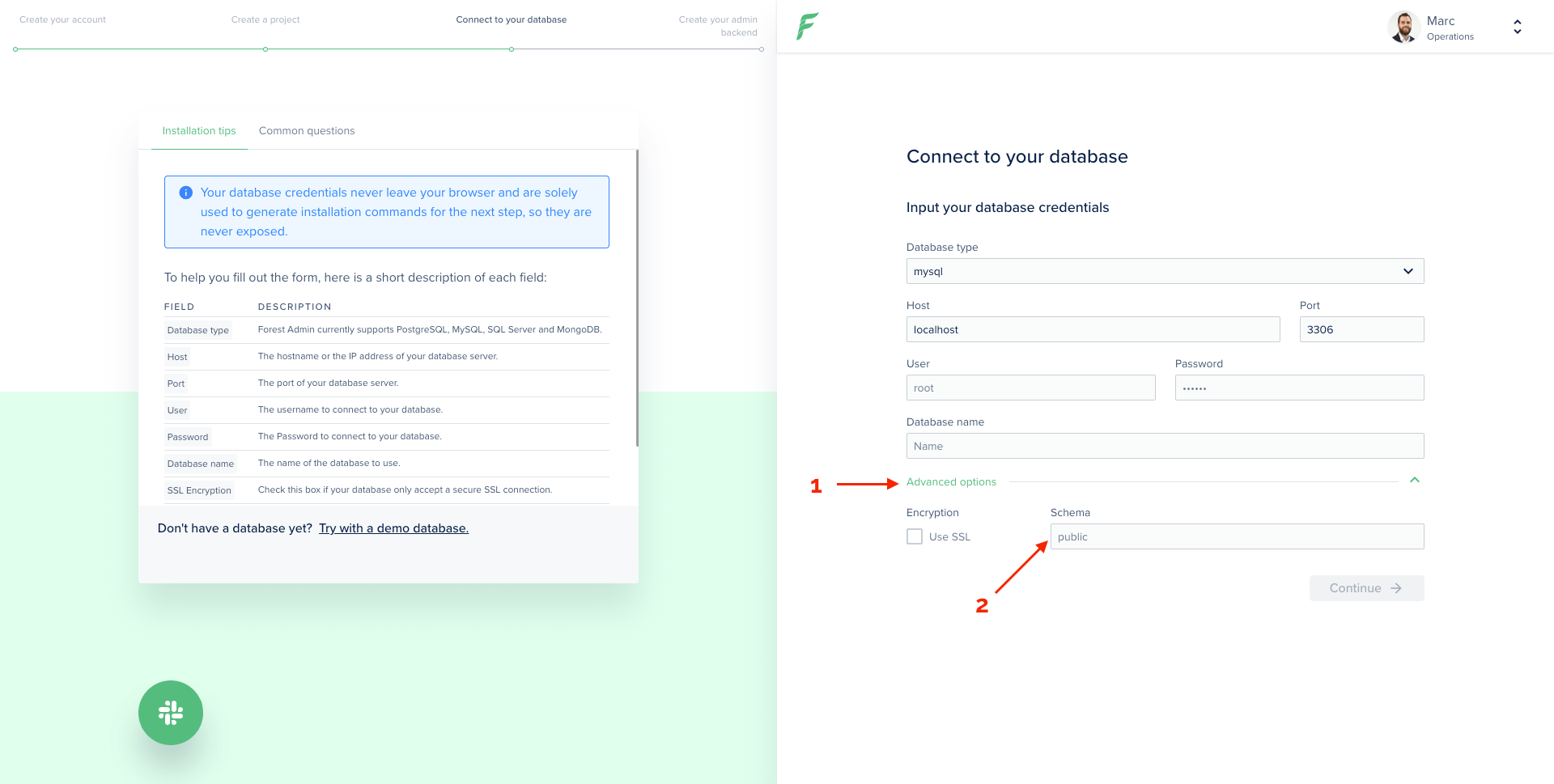 If you're not using specific schemas, you don't have to fill this advanced option.
### Forest can display collections from multiple schemas
To achieve this, proceed to install using 1 of your schemas. Only the models of this schema will be generated in your `models` directory.
Let's take a model example:
```javascript theme={null}
// This model was generated by Lumber. However, you remain in control of your models.
// Learn how here: https://docs.forestadmin.com/documentation/v/v5/reference-guide/models/enrich-your-models
module.exports = (sequelize, DataTypes) => {
const { Sequelize } = sequelize;
// This section contains the fields of your model, mapped to your table's columns.
// Learn more here: https://docs.forestadmin.com/documentation/v/v5/reference-guide/models/enrich-your-models#declaring-a-new-field-in-a-model
const Addresses = sequelize.define(
'addresses',
{
addressLine: {
type: DataTypes.STRING,
field: 'address',
},
addressCity: {
type: DataTypes.STRING,
},
country: {
type: DataTypes.STRING,
},
createdAt: {
type: DataTypes.DATE,
},
},
{
tableName: 'addresses',
underscored: true,
schema: process.env.DATABASE_SCHEMA,
}
);
return Addresses;
};
```
On **line 24**, you'll notice `schema: process.env.DATABASE_SCHEMA`.
It uses the environment variable `DATABASE_SCHEMA` set in your **.env** file. \
You'll have to edit this to match your schemas. For instance, if you have 2 schemas:
```javascript theme={null}
DATABASE_SCHEMA_1: name_of_the_first_schema;
DATABASE_SCHEMA_2: name_of_the_second_schema;
```
Once this is done, follow those steps:
#### Step 1: Edit your current models
Because you have changed your environment variable name from `DATABASE_SCHEMA` to `DATABASE_SCHEMA_1`, you need to update it in all your models' file in the `models` directory (same line as line 24 in the above example).
#### Step 2: Create new models
For each of your other schemas' models, you'll need to create a file in `models`. This must be done **manually** and the schema line must be set to `DATABASE_SCHEMA_2` as per above example.
If your other schemas have a lot of models, a quick way to generate the models is to create a another project using those other schemas (1 project for each schema).
If you're not using specific schemas, you don't have to fill this advanced option.
### Forest can display collections from multiple schemas
To achieve this, proceed to install using 1 of your schemas. Only the models of this schema will be generated in your `models` directory.
Let's take a model example:
```javascript theme={null}
// This model was generated by Lumber. However, you remain in control of your models.
// Learn how here: https://docs.forestadmin.com/documentation/v/v5/reference-guide/models/enrich-your-models
module.exports = (sequelize, DataTypes) => {
const { Sequelize } = sequelize;
// This section contains the fields of your model, mapped to your table's columns.
// Learn more here: https://docs.forestadmin.com/documentation/v/v5/reference-guide/models/enrich-your-models#declaring-a-new-field-in-a-model
const Addresses = sequelize.define(
'addresses',
{
addressLine: {
type: DataTypes.STRING,
field: 'address',
},
addressCity: {
type: DataTypes.STRING,
},
country: {
type: DataTypes.STRING,
},
createdAt: {
type: DataTypes.DATE,
},
},
{
tableName: 'addresses',
underscored: true,
schema: process.env.DATABASE_SCHEMA,
}
);
return Addresses;
};
```
On **line 24**, you'll notice `schema: process.env.DATABASE_SCHEMA`.
It uses the environment variable `DATABASE_SCHEMA` set in your **.env** file. \
You'll have to edit this to match your schemas. For instance, if you have 2 schemas:
```javascript theme={null}
DATABASE_SCHEMA_1: name_of_the_first_schema;
DATABASE_SCHEMA_2: name_of_the_second_schema;
```
Once this is done, follow those steps:
#### Step 1: Edit your current models
Because you have changed your environment variable name from `DATABASE_SCHEMA` to `DATABASE_SCHEMA_1`, you need to update it in all your models' file in the `models` directory (same line as line 24 in the above example).
#### Step 2: Create new models
For each of your other schemas' models, you'll need to create a file in `models`. This must be done **manually** and the schema line must be set to `DATABASE_SCHEMA_2` as per above example.
If your other schemas have a lot of models, a quick way to generate the models is to create a another project using those other schemas (1 project for each schema).